Site Monitoring
Always-On Monitoring, No SSH Required
Once you add a site to WP Vanguard, monitoring starts automatically. No extra setup needed. Every site on your dashboard is checked daily (or every 5 minutes for uptime) and you get emailed the moment something needs attention.
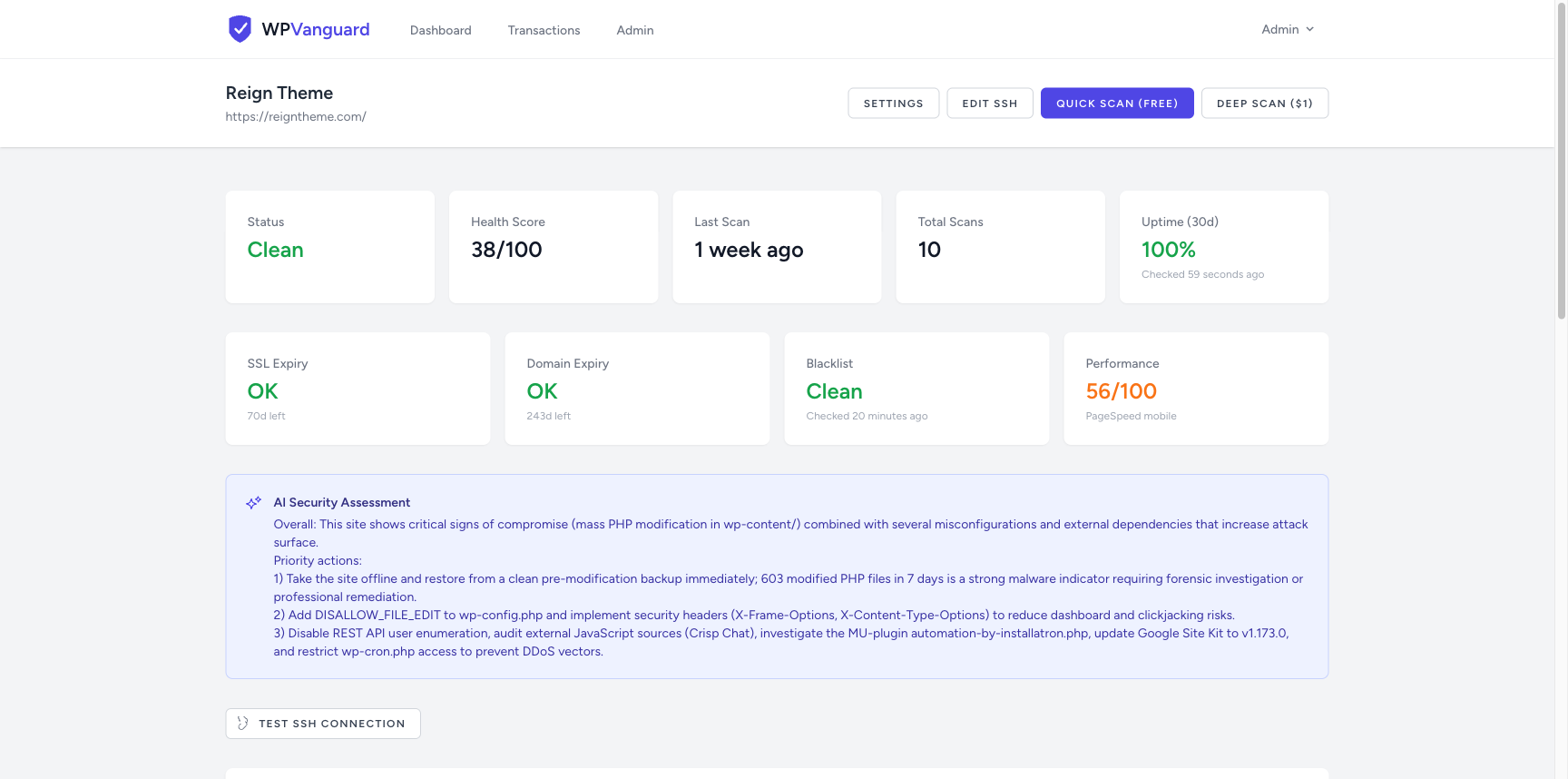
All monitoring features are included free with every account.
Uptime Monitoring
WP Vanguard checks your site every 5 minutes, 24/7. If your site goes down, you'll get an email within minutes. When it comes back up, you get a recovery email with the total downtime duration.
What the uptime card shows:
- 30-day uptime percentage on your dashboard
- Color coding: green (99%+), orange (95-99%), red (below 95%)
- "Down" status with time since the site went offline
Full uptime history is available by clicking the uptime card on your site detail page. You'll see a 45-day coloured bar chart, 24h/7d/30d availability stats, average response time, and a log of recent checks.
SSL Expiry Monitoring
WP Vanguard checks your SSL certificate expiry daily and alerts you before it lapses. A lapsed SSL cert breaks your site for all visitors and tanks your search rankings.
Alert schedule:
- 30 days before expiry — first warning email
- 14 days before expiry — second warning email
- 7 days before expiry — urgent alert email
What the SSL card shows:
- "OK" in green when more than 30 days remain (with days shown on hover)
- Days remaining in orange when 14-30 days left
- Days remaining in red when under 14 days
- "--" if the site hasn't been checked yet
Domain Expiry Monitoring
WP Vanguard performs a daily WHOIS lookup on your domain and alerts you before it expires. An expired domain means your site goes offline and you risk losing the domain to squatters.
Alert schedule:
- 30 days before expiry — first warning email
- 14 days before expiry — urgent alert email
Note: WHOIS data availability depends on the TLD and registrar. Some registrars restrict WHOIS lookups. If your domain shows "--", it means the WHOIS lookup couldn't retrieve expiry data for that TLD.
Blacklist Monitoring
WP Vanguard checks your site daily against Google Safe Browsing — the same database Chrome, Firefox, and Safari use to show the red warning screen to visitors.
If your site gets flagged for malware, phishing, or unwanted software, you'll receive an instant alert email with remediation steps.
What happens when your site is blacklisted:
- Visitors see a red warning page in their browser
- Google Search Console shows a manual action
- Traffic can drop 90%+ immediately
The alert email includes:
- Run a deep scan to identify the malicious files
- Request an expert cleanup to remove the malware
- Submit a review request to Google Search Console after cleanup
The blacklist card on your dashboard shows a red "Listed" badge if your site is flagged, or "Clean" in green if it's clear.
Performance Score Tracking
Every Monday, WP Vanguard fetches a Google PageSpeed Insights score (mobile) for each of your sites. This is the same score Google uses in its ranking signals.
Score ranges:
- 90-100 — Good (green)
- 50-89 — Needs improvement (orange)
- 0-49 — Poor (red)
What the performance card shows:
- Score out of 100 on the dashboard and site detail page
- "PageSpeed mobile" label so you know what it measures
- "--" until the first weekly check runs
The performance score gives you a quick signal when a plugin update, new widget, or theme change has hurt your page speed.
Automatic Deep Scans
Every account ships with weekly automatic deep scans turned on. Once you add a site with SSH access, WP Vanguard runs a full 20-step deep scan on it every week without you having to remember to trigger one.
Why this is on by default:
- Most compromises sit undetected for weeks before the owner notices, usually because nobody opens the dashboard between launches and incidents
- A weekly cadence catches new CVEs that affected your installed plugin versions and any backdoors planted since the last scan
- First scans are staggered across the first week so 200 sites don't hammer the scanner queue at the same hour
Adjusting the cadence per site:
Open Site Settings on any site to change the schedule. Available options:
- Weekly (default) — runs once every 7 days
- Daily — for high-risk sites, e-commerce, or post-incident watch periods
- Monthly — lighter-touch coverage for low-traffic informational sites
- Off — disable automatic scans entirely; you can still run them manually anytime
The weekly digest email always reports the date of your last automatic scan and when the next one is scheduled, so you never have to dig for the answer to "when was this site last checked."
Billing: Automatic deep scans cost the same as manual ones ($1 each). Your dashboard's transaction page shows automatic scan charges separately from manual ones so the billing trail stays clean.
Dashboard Overview
The multi-site dashboard shows a monitoring summary for every site at a glance:
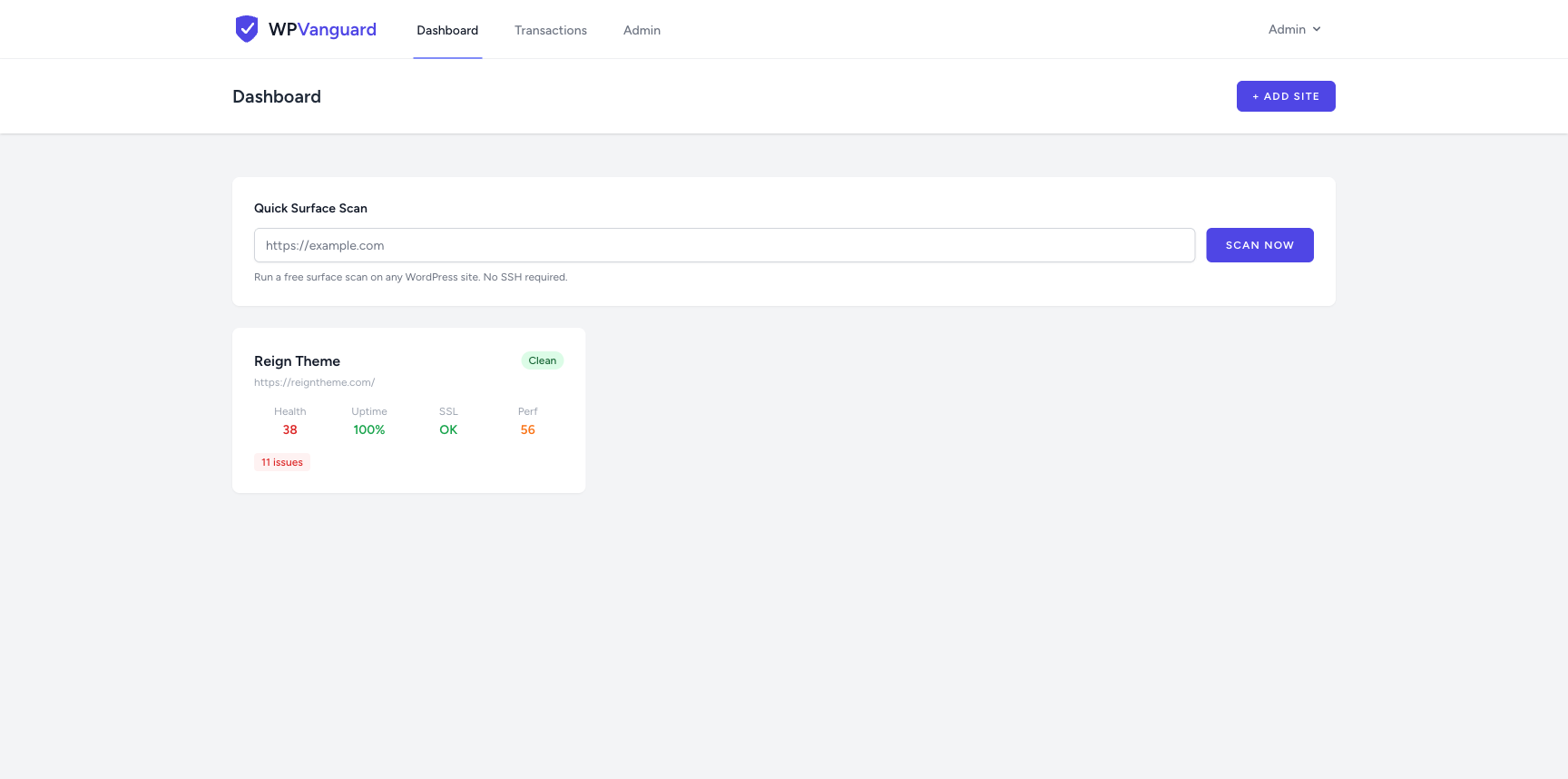
Each site card shows four columns:
- Health — Score from your last scan (0-100)
- Uptime — 7-day uptime percentage
- SSL — "OK" or days until expiry
- Perf — PageSpeed mobile score
Alert badges appear below the metrics when action is needed: blacklisted, SSL expiring soon, domain expiring soon, or open scan issues.
Email Alerts Reference
| Alert | Trigger | Frequency |
|---|---|---|
| Site down | Uptime check fails | Immediately (max once per outage) |
| Site recovered | Uptime restored | Immediately |
| SSL expiring | 30 / 14 / 7 days left | Once per threshold |
| Domain expiring | 30 / 14 days left | Once per threshold |
| Blacklisted | First detection | Once per blacklisting event |
| Vulnerability alert | New CVE for your plugins | Immediately |
| Weekly digest | Every Monday 8am | Weekly |
Check Your WordPress Site Security
Free scan, no login required. Find vulnerabilities before attackers do.
Scan Your Site Free